> ## Documentation Index
> Fetch the complete documentation index at: https://docs.hireotto.com/llms.txt
> Use this file to discover all available pages before exploring further.
# Manage Google Ads Negative Keywords with AI
> Find wasted search terms, add negatives at campaign or ad group level, and create, review, or clean up shared negative keyword lists in Google Ads using HireOtto.
***
Negative keywords are one of the highest-leverage optimisations in Google Ads — they stop your budget from being wasted on irrelevant queries. HireOtto supports all three levels of negative keyword management: campaign-level, ad group-level, and shared lists. This guide covers each approach and how to use them together effectively.
## Negative keyword workflow
A practical workflow looks like this:
1. Pull the search terms report
2. Sort by cost, clicks, or conversions
3. Identify irrelevant queries or high-spend zero-conversion terms
4. Decide whether each term belongs at campaign, ad group, or shared-list level
5. Add confirmed negatives – or remove stale, incorrect, or overly broad negatives from shared lists
6. Re-check performance after a few days
Start with the [Reporting guide](/guides/reporting) if you need to pull search terms first.
## Three ways to add negatives
**Campaign-level** — blocks a term across every ad group in the campaign. Best for broad exclusions that apply to the whole campaign (e.g. "free", "jobs", "DIY").
**Ad group-level** — blocks a term only within a specific ad group. Best for preventing cross-contamination between ad groups (e.g. blocking "product B" keywords in the "product A" ad group).
**Shared negative keyword lists** — a reusable list you create once and assign to multiple campaigns. Best for exclusions you'll want across many campaigns (e.g. a brand safety list, a competitor exclusion list, or a standard jobs/free-trial exclusion set).
***
## Finding negatives to add
The search terms report is the primary source. Pull it for any account or campaign you want to clean up:
```text theme={null}
Get the search terms report for account [CUSTOMER_ID] for the last 30 days, sorted by cost, output mode summary_and_csv.
```
Look for: terms with spend but zero or low conversions, irrelevant queries, competitor brand names you don't want to pay for, and queries that don't match your offer.
***
## Adding negatives at the campaign level
For broad exclusions across an entire campaign:
```text theme={null}
Add "[NEGATIVE_KW1]", "[NEGATIVE_KW2]", "[NEGATIVE_KW3]" as exact match negatives to campaign [CAMPAIGN_ID].
```
Mixed match types:
```text theme={null}
Add these negatives to campaign [CAMPAIGN_ID]: "[KW1]" as broad match, "[KW2]" as phrase match, "[KW3]" as exact match.
```
**Match type guidance:**
* **Exact** — only blocks that precise query. Most surgical, lowest risk of over-blocking.
* **Phrase** — blocks any query containing that phrase in order.
* **Broad** — blocks any query containing all the words in any order. Use carefully — it can block more than you intend.
When in doubt, start with exact match negatives. You can always expand later.
***
## Adding negatives at the ad group level
For cross-contamination prevention between ad groups:
```text theme={null}
Add "[NEGATIVE_KW]" as exact match negative to ad group [ADGROUP_ID] in campaign [CAMPAIGN_ID].
```
***
## Shared negative keyword lists
### Creating a new list
Create a list with initial keywords in one step:
```text theme={null}
Create a negative keyword list called "[LIST_NAME]" with these keywords as exact match: [KW1], [KW2], [KW3].
```
Mixed match types:
```text theme={null}
Create a negative keyword list called "[LIST_NAME]": "[KW1]" broad, "[KW2]" phrase, "[KW3]" exact.
```
### Assigning a list to campaigns
After creating a list (or to assign an existing one), get the list ID first:
```text theme={null}
List all negative keyword lists in account [CUSTOMER_ID].
```
Then assign it:
```text theme={null}
Assign negative keyword list [LIST_ID] to campaign [CAMPAIGN_ID].
```
You can assign the same list to multiple campaigns:
```text theme={null}
Assign negative keyword list [LIST_ID] to campaign [CAMPAIGN_ID_1].
```
```text theme={null}
Assign negative keyword list [LIST_ID] to campaign [CAMPAIGN_ID_2].
```
### Adding more keywords to an existing list
```text theme={null}
Add these keywords to negative list [LIST_ID]: "[KW1]", "[KW2]", "[KW3]" — exact match.
```
### Reviewing an existing list
```text theme={null}
List all negative keyword lists in account [CUSTOMER_ID] and include the keywords in each list.
```
Shared negative lists are especially useful during [Google Ads account audits](/guides/google-ads-account-audit-with-ai), because they reveal whether an account has reusable exclusions or scattered one-off negatives.
### Removing keywords from an existing list
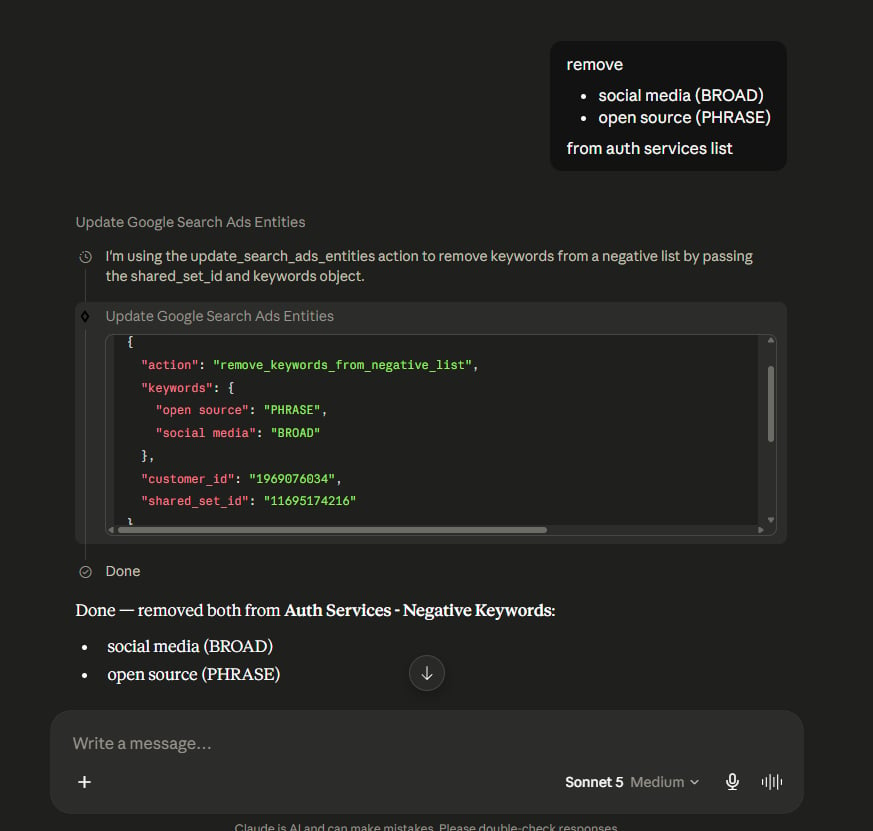
Shared negative keyword lists change over time. You may need to remove a keyword that is too broad, no longer relevant, or was added by mistake.
HireOtto supports two workflows.
#### **Remove directly using keyword text and match type**
Specify both the keyword and match type so HireOtto removes the intended entry:
```text theme={null}
Remove “social media” as broad match and “open source” as phrase match from the negative keyword list “[LIST_NAME]”.
```
 #### **Review the list first, then remove selected entries**
Start by listing the keywords:
```text theme={null}
List all negative keyword lists in account [CUSTOMER_ID] and include the keywords in each list.
```
HireOtto returns each keyword’s text, match type, and exact identifier. You can then continue in the same conversation:
```text theme={null}
From negative keyword list [LIST_ID], remove “[KW1]” ([MATCH_TYPE]) and “[KW2]” ([MATCH_TYPE]) using the entries you just returned.
```
You can also provide the returned resource names directly when you already have them:
```text theme={null}
Remove these entries from negative keyword list [LIST_ID] using their resource names: [RESOURCE_NAME_1], [RESOURCE_NAME_2].
```
The review-first workflow is useful when you want to confirm exactly what will be removed before changing a list shared across several campaigns.
***
## Typical negative keyword workflow
**New account or campaign:**
1. Pull search terms for context (if the account has history)
2. Create a shared brand-safety / common-exclusions list
3. Assign it to all campaigns
4. Add any campaign-specific negatives at campaign level
**Ongoing optimisation (weekly or monthly):**
1. Pull search terms report sorted by cost
2. Identify wasted spend — zero-conversion terms with significant spend
3. Add confirmed wasted terms as campaign-level exact match negatives
4. Add any terms that indicate ad group cross-contamination at ad group level
5. For terms you'll want to exclude permanently across all campaigns, add to your shared list
6. Periodically review shared lists and remove outdated or overly broad exclusions that may be blocking useful traffic.
**Full weekly negative review sequence:**
```text theme={null}
Get the search terms report for account [CUSTOMER_ID] for the last 7 days, sorted by cost, output mode summary_and_csv.
```
```text theme={null}
Add these negatives to campaign [CAMPAIGN_ID]: "[WASTED_TERM_1]", "[WASTED_TERM_2]" — exact match.
```
```text theme={null}
Add "[BROAD_EXCLUSION]" to negative keyword list [LIST_ID] — phrase match.
```
***
## Related workflows
* [Analyze Google Ads performance reports with AI](/guides/reporting)
* [Google Ads Daily Optimization with AI](/guides/google-ads-daily-optimization-with-ai)
* [Google Ads Account Audit with AI](/guides/google-ads-account-audit-with-ai)
#### **Review the list first, then remove selected entries**
Start by listing the keywords:
```text theme={null}
List all negative keyword lists in account [CUSTOMER_ID] and include the keywords in each list.
```
HireOtto returns each keyword’s text, match type, and exact identifier. You can then continue in the same conversation:
```text theme={null}
From negative keyword list [LIST_ID], remove “[KW1]” ([MATCH_TYPE]) and “[KW2]” ([MATCH_TYPE]) using the entries you just returned.
```
You can also provide the returned resource names directly when you already have them:
```text theme={null}
Remove these entries from negative keyword list [LIST_ID] using their resource names: [RESOURCE_NAME_1], [RESOURCE_NAME_2].
```
The review-first workflow is useful when you want to confirm exactly what will be removed before changing a list shared across several campaigns.
***
## Typical negative keyword workflow
**New account or campaign:**
1. Pull search terms for context (if the account has history)
2. Create a shared brand-safety / common-exclusions list
3. Assign it to all campaigns
4. Add any campaign-specific negatives at campaign level
**Ongoing optimisation (weekly or monthly):**
1. Pull search terms report sorted by cost
2. Identify wasted spend — zero-conversion terms with significant spend
3. Add confirmed wasted terms as campaign-level exact match negatives
4. Add any terms that indicate ad group cross-contamination at ad group level
5. For terms you'll want to exclude permanently across all campaigns, add to your shared list
6. Periodically review shared lists and remove outdated or overly broad exclusions that may be blocking useful traffic.
**Full weekly negative review sequence:**
```text theme={null}
Get the search terms report for account [CUSTOMER_ID] for the last 7 days, sorted by cost, output mode summary_and_csv.
```
```text theme={null}
Add these negatives to campaign [CAMPAIGN_ID]: "[WASTED_TERM_1]", "[WASTED_TERM_2]" — exact match.
```
```text theme={null}
Add "[BROAD_EXCLUSION]" to negative keyword list [LIST_ID] — phrase match.
```
***
## Related workflows
* [Analyze Google Ads performance reports with AI](/guides/reporting)
* [Google Ads Daily Optimization with AI](/guides/google-ads-daily-optimization-with-ai)
* [Google Ads Account Audit with AI](/guides/google-ads-account-audit-with-ai)